
Have a Smart TV? We make it easy to enjoy your favorite entertainment!
If you own a Samsung, LG, Roku, Android TV, or compatible Smart TV, you can install one of our supported apps and we’ll provide you with both the app setup and the service with one simple payment — no need to purchase anything separately.
IPTV Setup on Samsung Smart TV
Samsung Smart TVs use the Tizen operating system, so app availability can vary by TV model and region.
Step 1: Open the Samsung App Store
From your TV’s home screen, open the Apps section and search for a compatible IPTV player.
Step 2: Install the App / player
Select the IPTV player you want to use from the list bellow and choose Install. Once installation is complete, open the app.
Step 3: message our agent for activation .
IPTV Setup on LG Smart TV
LG Smart TVs generally use webOS, and the available IPTV applications depend on your TV model and country.
Step 1: Open the LG Content Store
Press the Home button on your remote and open the LG app store.
Step 2: Search for the app or Player
Search for a compatible application from list bellow and install it on your TV.
Step 3: Message our agent for activation
How to Use IPTV on Roku
Roku works differently from Samsung and LG because Roku devices use the Roku platform rather than Android TV or webOS.
Step 1: Check the IPTV App’s Roku Compatibility
Search the Roku Channel Store for an IPTV player that supports your service’s connection method.
Step 2: Add the Channel
Select the compatible app for list bellow and add it to your Roku device.
Step 3: message our agent for activation
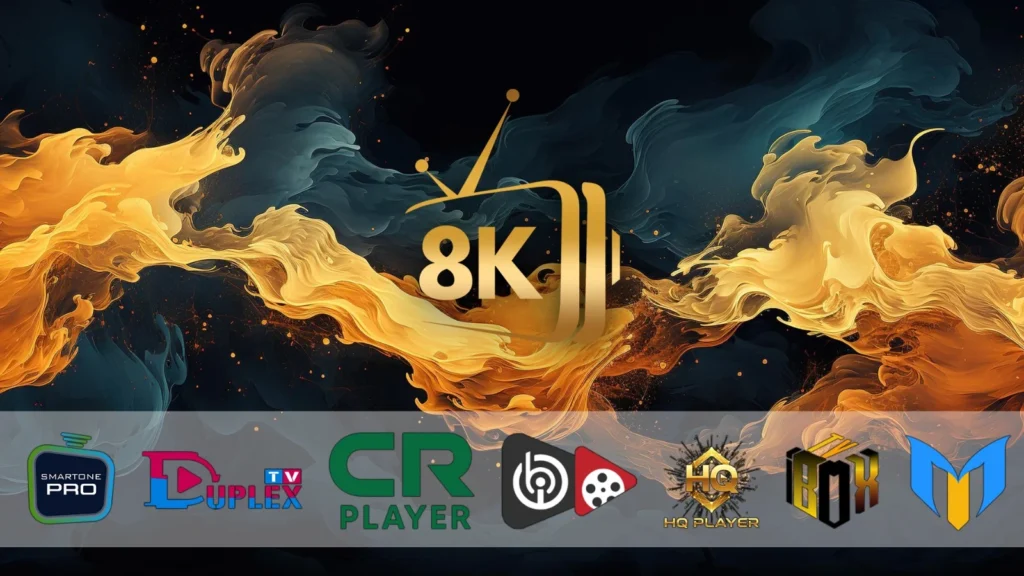
Supported apps include:
- CRPLAYER
- 2- MESSITV
- 3- DUPLEX TV
- 4- SMARTERS VPN PLAYER
- 5- HQPLAYER
Get everything you need in one place — app installation support + service activation made simple.
Leave a Reply
You must be logged in to post a comment.